Last Updated: January 20, 2026
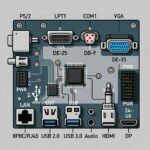
External PC sockets—commonly called ports—are the physical connectors on the outside of your computer. These ports allow your PC or laptop to connect to monitors, keyboards, storage devices, internet cables, audio equipment, and power.
For beginners, ports can be confusing because many look similar and are poorly labeled. This guide explains every major external PC socket using real images and plain language so you can identify them confidently.
What Are External Sockets and Why They Matter
External sockets are the bridge between your computer and the outside world. Using the wrong port can lead to slow performance, devices not working, or even hardware damage.
Knowing your ports helps you:
- Connect monitors correctly
- Use the fastest USB ports
- Avoid damaging cables or sockets
- Choose the right adapters
- Troubleshoot issues confidently
1. USB Ports (Universal Serial Bus)
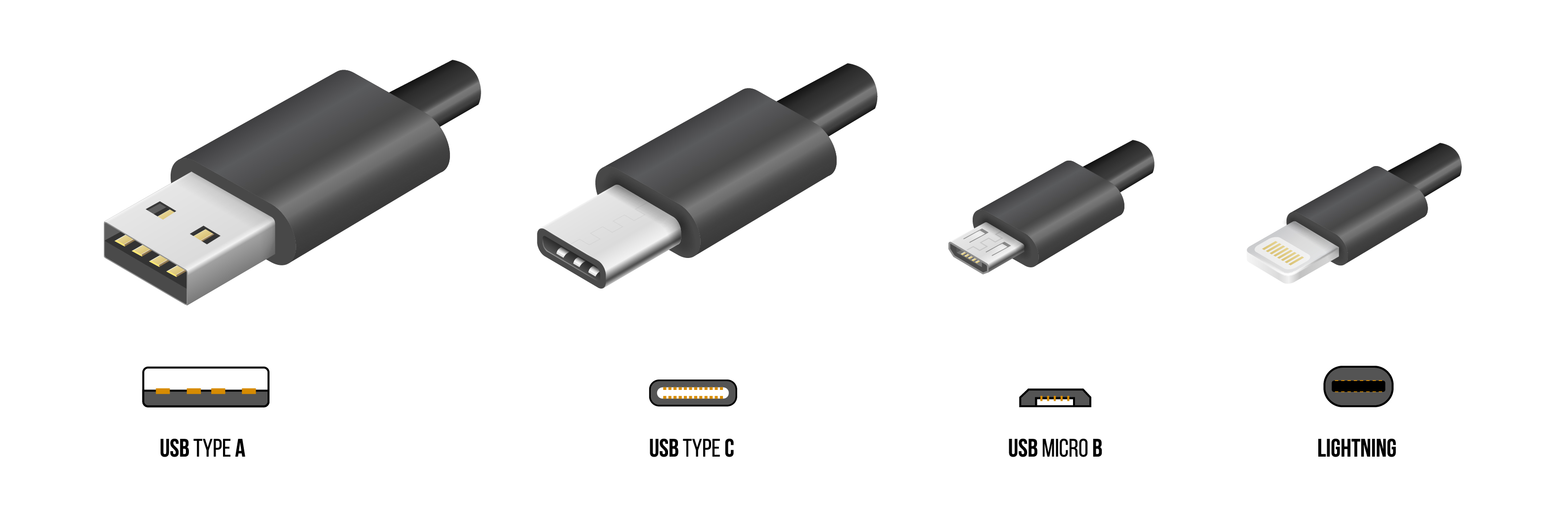
USB ports are the most common ports on any PC or laptop.
USB Type-A
- Rectangular shape
- Found on most desktops and laptops
- Used for mouse, keyboard, flash drives
Color guide:
- Black → USB 2.0 (slow)
- Blue → USB 3.x (fast)
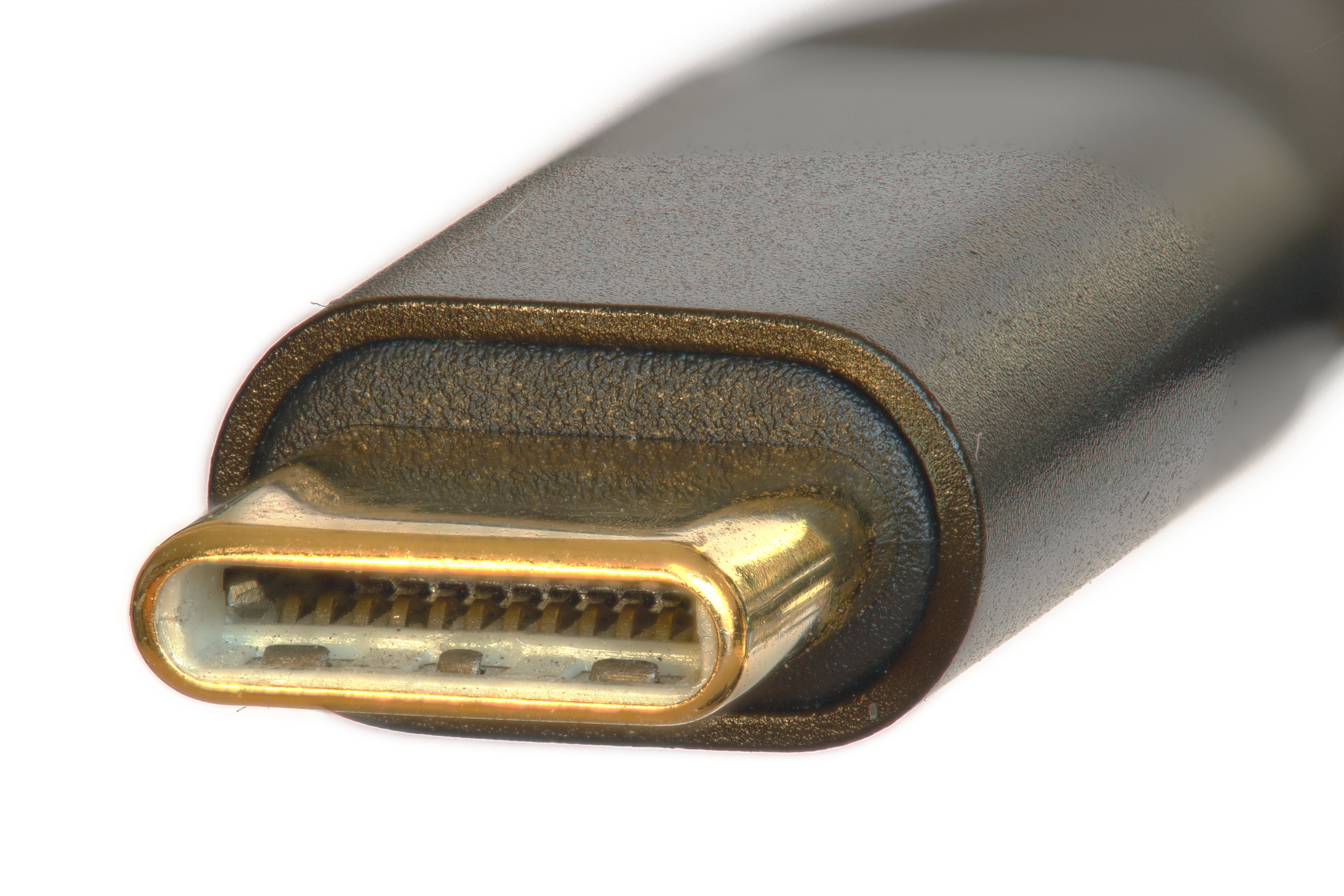
USB Type-C
- Oval and reversible
- Supports data, charging, and sometimes video
Important: Not all USB-C ports support video or charging.
2. Thunderbolt Ports
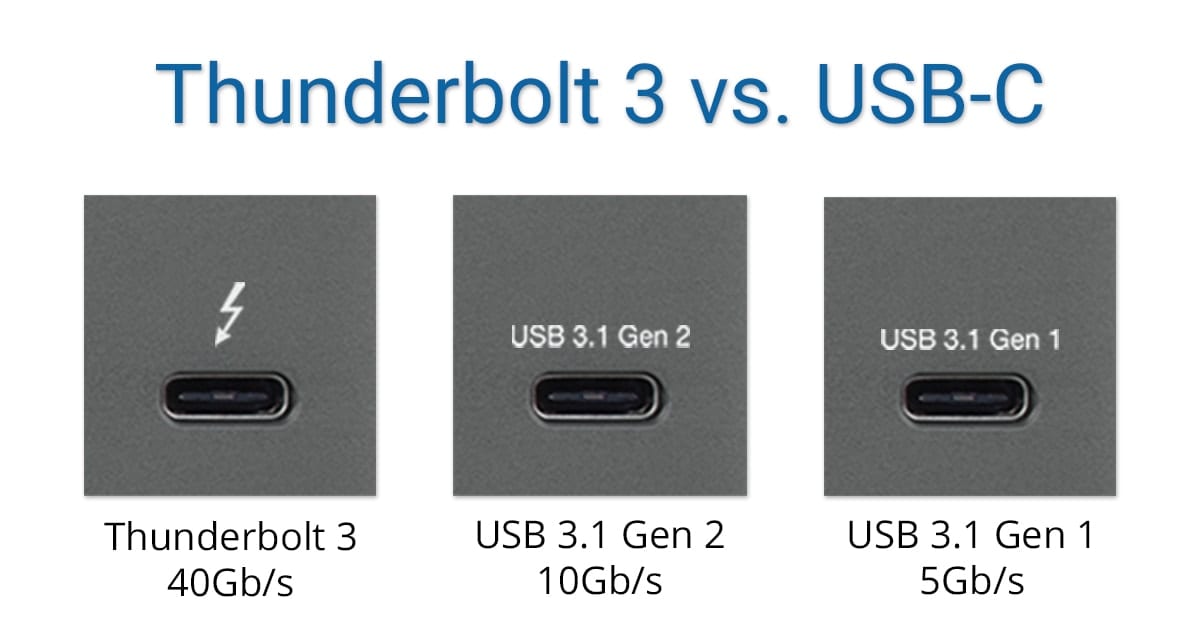
Thunderbolt ports use the USB-C shape but offer much higher performance.
- Marked with a lightning ⚡ symbol
- Supports high-speed data, displays, and charging
Common in professional laptops and high-end desktops.
3. Display / Monitor Ports
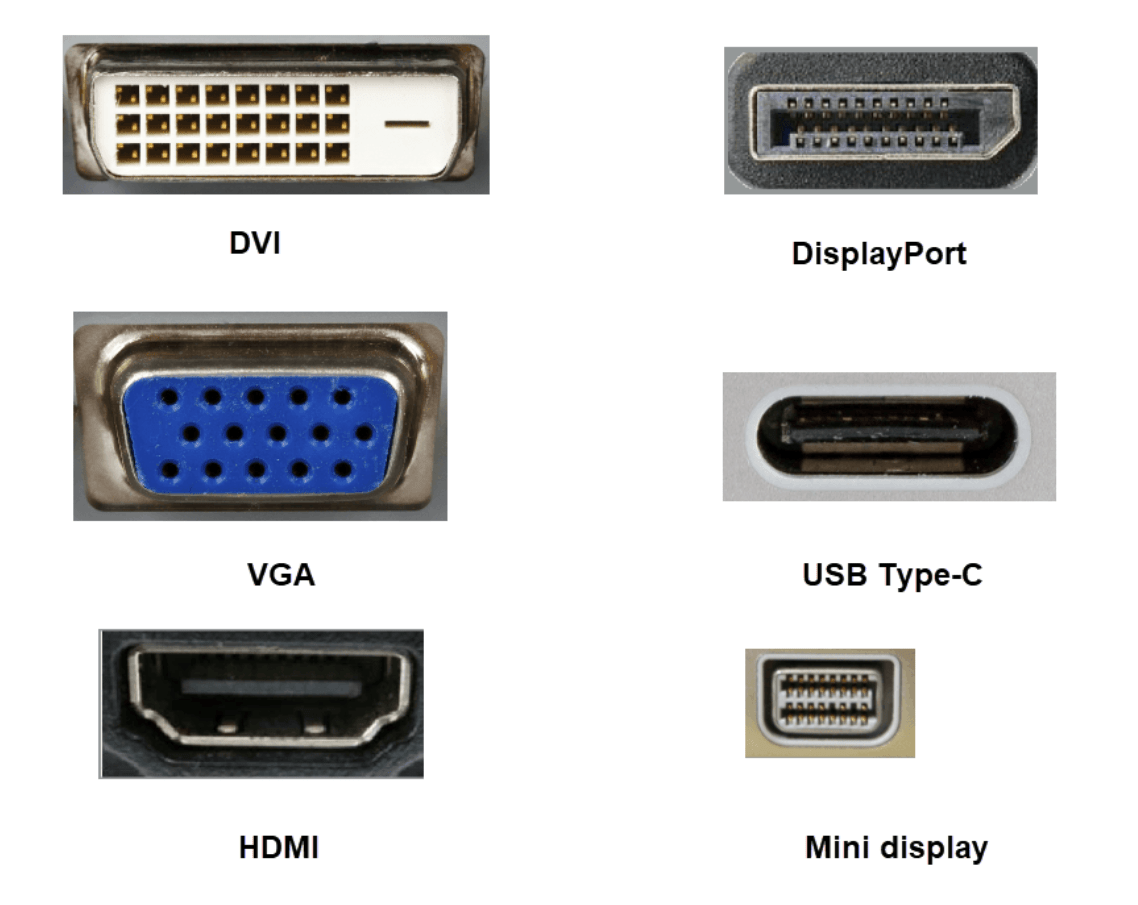
HDMI
- Flat with angled corners
- Video + audio
- Used for TVs and monitors
DisplayPort
- One corner cut
- Best for high refresh rate monitors
VGA (Old)
- Blue, 15 pins
- Analog only
4. Ethernet (LAN / Internet Port)
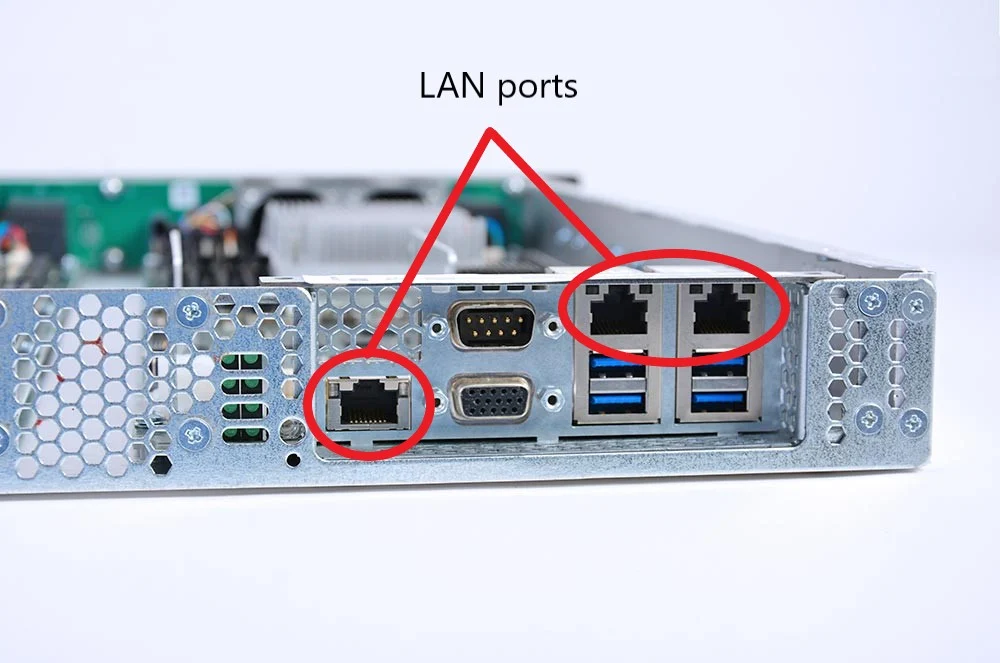
The Ethernet port connects your PC to wired internet.
- More stable than Wi-Fi
- Lower latency
- Used in offices and gaming setups
5. Audio Ports (Headphone & Microphone)
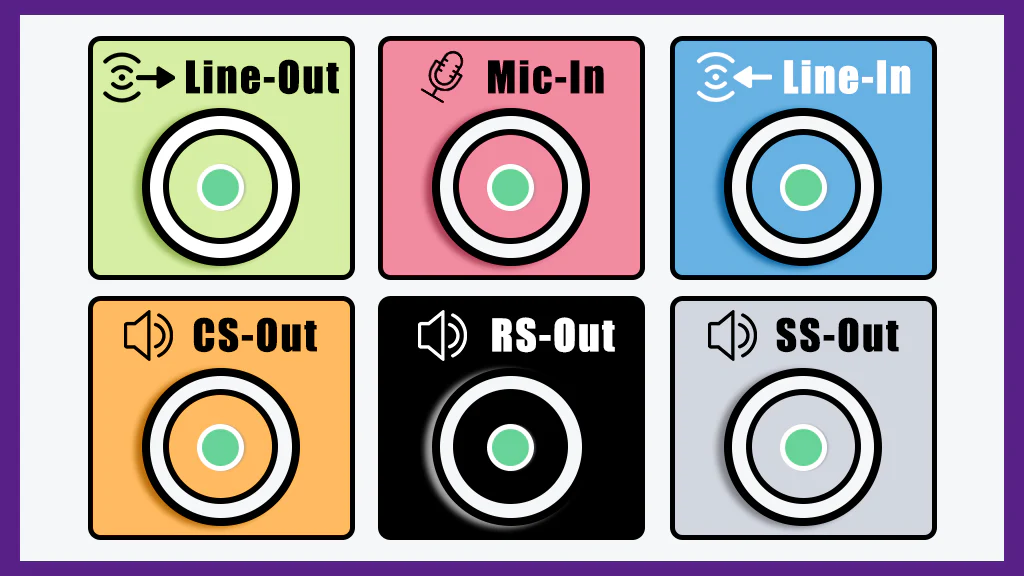
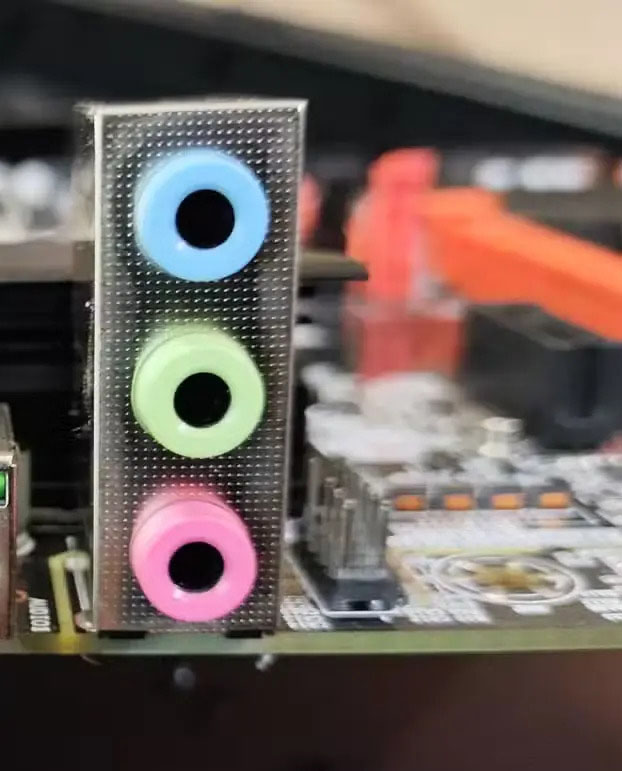
| Color | Function |
|---|---|
| Green | Headphones / Speakers |
| Pink | Microphone |
| Blue | Line-in |
Laptops often combine audio and microphone into one jack.
6. Power Socket
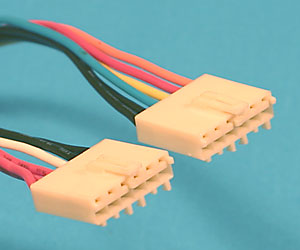
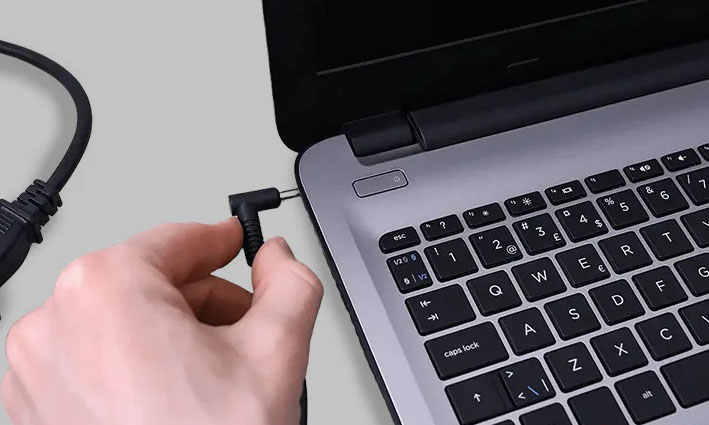
Never use incompatible chargers. Voltage mismatch can permanently damage hardware.
7. Memory Card Reader Slots
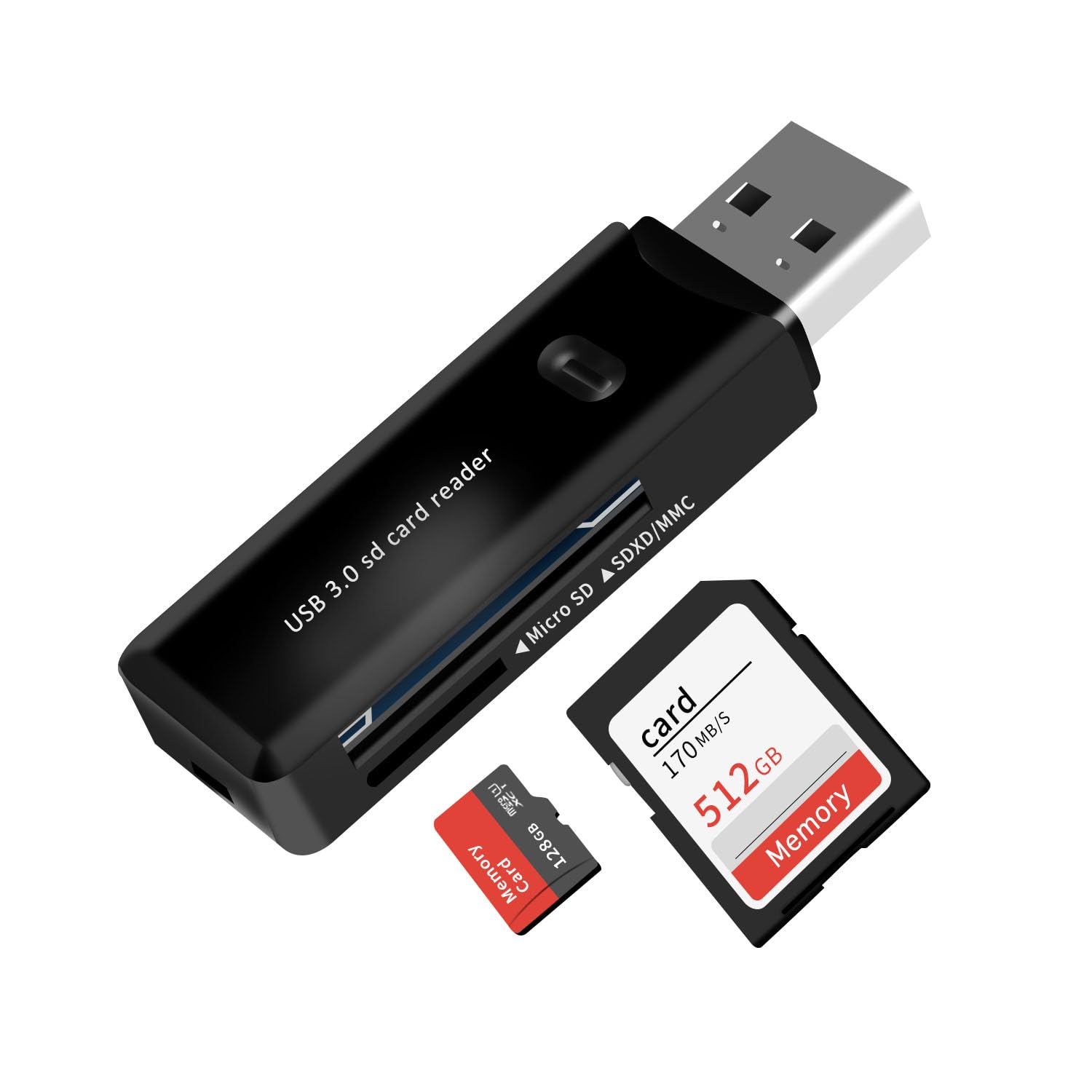
Common on laptops and used by photographers and creators.
8. Legacy Ports (Rare but Still Seen)
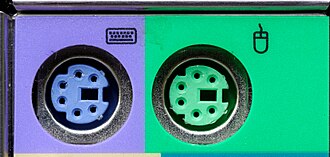
- PS/2 – old mouse/keyboard
- Serial / Parallel – industrial use
How to Identify Ports Correctly
- Check the shape
- Check the icon or label
- Check the color
- Confirm in the device manual
If a cable doesn’t fit easily, it’s the wrong one.
Common Mistakes to Avoid
- Assuming all USB-C ports are the same
- Forcing connectors
- Ignoring port symbols
Final Thoughts
External PC sockets are not complicated—just misunderstood.
Once you recognize the shapes and symbols, you can connect devices confidently and avoid mistakes.
This knowledge saves time, money, and frustration.
Hidden PC & Mobile Software Features You Should Use in 2025
FAQ
Are USB-C and Thunderbolt the same?
No. Thunderbolt uses USB-C shape but offers more features.
Which port is best for monitors?
DisplayPort for high refresh rate, HDMI for TVs.
Can wrong cables damage ports?
Yes. Never force connections.