
Last Updated: January 20, 2026
Introduction
Artificial Intelligence is evolving faster than ever, and so are the ways we interact with it. But what if you could build your own private chatbot — one that answers questions from your local documents without sending data to the cloud?
That’s exactly what a Local Doc Chatbot does — powered by open-source LLMs like GPT4All, LM Studio, and Ollama. In this guide, we’ll walk through every step — from setup to customization — so you can have a fully functional offline chatbot ready to analyze your PDFs, notes, and text files.
🧩 What Is a Local Doc Chatbot?
A Local Doc Chatbot is an AI assistant that runs entirely on your computer and uses your own data to answer questions. Instead of relying on cloud APIs like OpenAI, it uses open-source large language models (LLMs) that can be downloaded and run offline.
Key Benefits:
- 🛡️ Privacy: Your documents never leave your PC.
- ⚡ Offline Access: No internet dependency once setup.
- 💸 Free to Run: No token or subscription costs.
- 🧰 Customizable: Tailor the bot to your field — law, research, business, or coding.
🏗️ Step 1: Choosing the Right Open-Source LLM
The first step is picking a model that suits your hardware and goals. Here are some excellent options:
| Model Name | Best For | RAM Needed | Size | Notes |
|---|---|---|---|---|
| GPT4All Falcon 7B | General Q&A | 8–12GB | 4.2 GB | Balanced and versatile |
| Llama 3.2 3B | Lightweight local use | 4–6GB | 2 GB | Fast and efficient |
| DeepSeek-R1-Distill-Qwen 1.5B | Code and documentation | 4GB | 1.8 GB | Great for lower-end PCs |
| Mistral 7B Instruct | Research and comprehension | 8GB | 4.4 GB | Excellent accuracy |
If your system has 8GB RAM and an Intel i3, the DeepSeek-R1 or Llama 3.2 1B will perform best.
⚙️ Step 2: Installing GPT4All or LM Studio
You’ll need a local runtime to handle model inference and chat interaction. Two top tools are:
Option A: GPT4All (Easiest UI)
- Download from gpt4all.io.
- Install it and select your model (e.g., “DeepSeek-R1-Distill-Qwen”).
- Once downloaded, click Chat → Settings → Enable “LocalDocs”.
- Add your folder containing
.pdf,.txt,.docxfiles.
GPT4All automatically indexes them and lets you chat privately — all offline.
Option B: LM Studio
- Download LM Studio (Windows/Mac/Linux).
- Import an open-source model (like “Mistral 7B”).
- Go to the LocalDocs tab, choose your folder, and start chatting.
LM Studio provides faster inference with GPU acceleration when available.
📂 Step 3: Preparing Your Document Collection
Your AI bot learns by reading your documents — so organization matters.
Tips for Better Accuracy:
- Use clear filenames: e.g., “Marketing_Strategy_2024.pdf”.
- Keep related topics in one folder.
- Convert images/scans to text with OCR tools.
- Avoid extremely large PDFs (split them into smaller ones).
💬 Step 4: Building a Simple Web Interface (Optional)
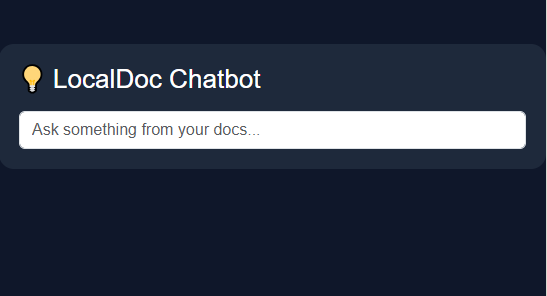
Want a web interface for your local chatbot? Here’s a PHP + Bootstrap snippet to display a chat UI that connects to your GPT4All local API:
<!DOCTYPE html>
<html lang="en">
<head>
<meta charset="UTF-8">
<title>LocalDoc Chatbot</title>
<link rel="stylesheet" href="https://cdn.jsdelivr.net/npm/bootstrap@5.3.0/dist/css/bootstrap.min.css">
<style>
body { background: #0f172a; color: #fff; font-family: 'Poppins', sans-serif; }
.chatbox { max-width: 800px; margin: 50px auto; background: #1e293b; padding: 20px; border-radius: 15px; }
.message { margin: 10px 0; }
.bot { color: #38bdf8; }
.user { color: #a5f3fc; text-align: right; }
</style>
</head>
<body>
<div class="chatbox">
    <h2>💡 LocalDoc Chatbot</h2>
    <div id="chat"></div>
    <form id="chatForm">
        <input type="text" id="userInput" class="form-control mt-3" placeholder="Ask something from your docs..." required>
    </form>
</div>

<script>
const form = document.getElementById('chatForm');
const chat = document.getElementById('chat');
form.addEventListener('submit', async (e) => {
    e.preventDefault();
    const userInput = document.getElementById('userInput').value;
    chat.innerHTML += `<div class="message user">${userInput}</div>`;
    document.getElementById('userInput').value = '';
    const res = await fetch('http://localhost:4891/api/v1/chat/completions', {
        method: 'POST',
        headers: {'Content-Type': 'application/json'},
        body: JSON.stringify({ model: 'deepseek-r1', messages: [{role: 'user', content: userInput}] })
    });
    const data = await res.json();
    chat.innerHTML += `<div class="message bot">${data.choices[0].message.content}</div>`;
});
</script>
</body>
</html>
✅ This simple front-end connects to GPT4All’s local REST API and displays your conversations like ChatGPT.
🧩 Step 5: Improving Accuracy with Embeddings
Most LLMs read text contextually. But for document-level precision, you can add an embedding model. GPT4All and LM Studio handle this automatically when you add documents.
If coding manually, you can use LangChain or LlamaIndex in Python:
from llama_index import VectorStoreIndex, SimpleDirectoryReader
docs = SimpleDirectoryReader('mydocs').load_data()
index = VectorStoreIndex.from_documents(docs)
query_engine = index.as_query_engine()
response = query_engine.query("Summarize the 2025 strategy report")
print(response)
This structure lets the AI read context from thousands of documents while staying lightweight and local.
🔒 Step 6: Privacy and Security Best Practices
- Disable cloud sync or telemetry in your AI tool.
- Store your documents on encrypted drives.
- Use firewall or local-only API to prevent exposure.
- Regularly clear cache or temp data.
Privacy is the biggest reason developers prefer local LLMs — your sensitive data (medical, legal, business) never leaves your device.
🚀 Step 7: Real-World Use Cases
Here are a few ways people are using local doc chatbots right now:
- Researchers – Quickly search across 100s of research papers.
- Lawyers – Extract legal references from case documents.
- Writers – Summarize notes or manuscripts for book editing.
- Teachers – Create quizzes or summaries from lesson PDFs.
- Businesses – Build internal Q&A tools without cloud costs.
💡 Pro Tip: Combine AI + WordPress
If you run a WordPress site, you can even create a “Private AI Assistant” page by embedding your chatbot’s web UI.
Example:
<iframe src="http://localhost:4891/chat.html" width="100%" height="700"></iframe>
Visitors (or you) can chat with your local model directly through your WordPress dashboard!
🧭 Conclusion
Building a Local Doc Chatbot isn’t just about automation — it’s about taking back control of your AI workflow. With open-source LLMs like GPT4All, LM Studio, and DeepSeek-R1, anyone can have a private, offline, and secure AI assistant that truly belongs to them.
Whether you’re a researcher, developer, or blogger — your data deserves privacy. And now, you can chat with it — securely, locally, and freely.
How to Start Earning Money with Only an Android Phone and Fast Internet (No Investment Needed)