Last Updated: January 15, 2026
Introduction to Linux
Linux is an open-source operating system that has gained immense popularity due to its flexibility, security, and performance. Unlike proprietary operating systems such as Windows or macOS, Linux is collaboratively developed by a global community, which allows for constant improvements and updates. Its open-source nature means that users can modify the software to meet their needs, making it a preferred choice for developers, system administrators, and tech enthusiasts alike.
One significant advantage of using Linux is its variety of distributions, often referred to as “distros.” Different Linux distributions cater to specific user needs, each offering unique features and environments. For example, Ubuntu is known for its user-friendly interface and ease of installation, which makes it an excellent choice for beginners. Conversely, distributions like Arch Linux appeal more to advanced users who prefer to customize their systems extensively.
Another notable benefit of Linux is its inherent stability and security. Linux systems are less susceptible to malware and viruses compared to other operating systems, making them a reliable choice for servers and critical applications. Many organizations, including large corporations and educational institutions, have adopted Linux for their server environments, citing not only security but also cost-effectiveness, as Linux can be freely downloaded and distributed.
The growing popularity of Linux can also be attributed to its vibrant community and extensive documentation. There are numerous forums, tutorials, and guides available, ensuring that users can find assistance whenever needed. Furthermore, with the rise of cloud computing and server management, Linux has positioned itself as a dominant force in the tech world, attracting both new and experienced users looking to harness its capabilities.
Hardware Requirements for Installing Linux
Before embarking on the journey of installing Linux on your PC, it is crucial to understand the hardware requirements necessary for a successful installation. This ensures not only the functionality of the operating system but also enhances the overall user experience.
The central processing unit (CPU) is a significant component when selecting hardware for Linux. Most modern Linux distributions require a 64-bit processor. While some lightweight distributions can run on older 32-bit processors, opting for a 64-bit CPU is advisable for better performance and compatibility with a wider array of software.
Random Access Memory (RAM) is another critical factor. For optimal performance, a minimum of 2GB of RAM is recommended for lightweight distributions, while mainstream distributions typically require at least 4GB. For users who intend to multitask or run resource-intensive applications, having 8GB to 16GB of RAM is recommended.
Hard drive space is also a vital consideration. Most Linux distributions necessitate at least 15GB of available storage. However, to accommodate applications, files, and future updates, setting aside 20GB to 30GB or more is prudent. Users with specific needs, such as multimedia production or gaming, may require even larger capacities.
Lastly, graphics compatibility cannot be overlooked. Most Linux distributions support a variety of graphics cards, but it is beneficial to verify compatibility with popular brands such as NVIDIA and AMD. For optimal visual performance, especially in gaming or design applications, users should ensure they have drivers tailored for Linux installed.
In conclusion, adhering to the specified hardware requirements including a compatible CPU, sufficient RAM, generous hard drive space, and appropriate graphics cards will significantly enhance the experience of using Linux on your PC.
Choosing the Right Linux Distribution
When it comes to installing Linux on your PC, one of the most important steps is choosing the right Linux distribution. A Linux distribution, or distro, is a packaged version of the Linux operating system that includes the Linux kernel, applications, and a suitable interface for users. With numerous options available, selecting a distribution that aligns with your needs is crucial. Factors such as ease of use, community support, and system requirements should guide your decision-making process.
For those who are new to Linux, Ubuntu is often recommended as one of the best starting points. It is designed with user-friendliness in mind, making it accessible for beginners. Ubuntu boasts a large community and a wealth of online resources, ensuring that assistance is readily available. Its regular updates and extensive software repositories further enhance its appeal.
Another popular option is Fedora, which is known for its cutting-edge features and adherence to open-source principles. Fedora attracts users who appreciate having access to the latest software and innovations. While it may require a slightly steeper learning curve compared to Ubuntu, its active community provides ample support for newcomers.
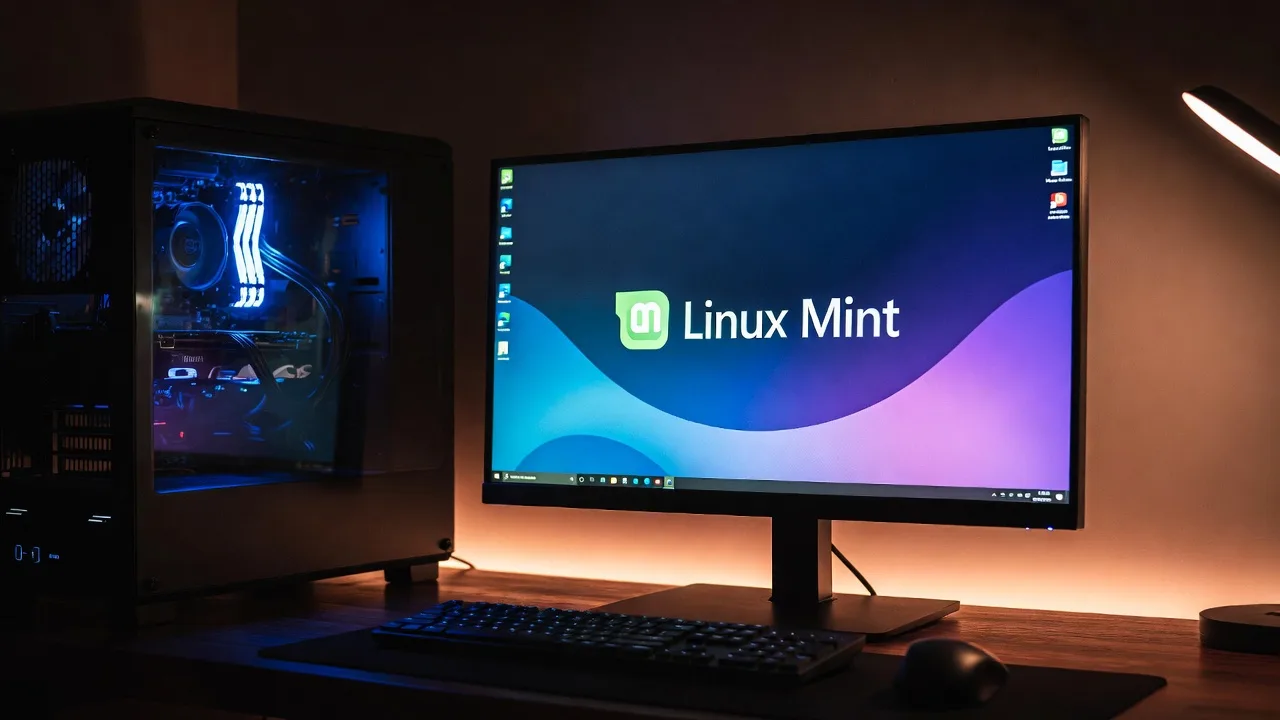
For those seeking a more traditional desktop experience, Linux Mint is an excellent choice. Mint is based on Ubuntu and is designed to be intuitive, especially for users transitioning from Windows. With a familiar interface, Mint includes essential applications out of the box and emphasizes stability, making it suitable for users who desire a reliable environment without frequent updates.
Ultimately, the best Linux distribution for you will depend on your specific needs, hardware compatibility, and personal preferences. Exploring user reviews and community forums can provide valuable insights into the best fit for your objectives.
Preparing Installation Media
To install Linux on your PC, the first step involves preparing the installation media, typically a USB drive or DVD. This process consists of downloading the Linux distribution’s ISO file and then creating the bootable media. Below are step-by-step instructions tailored for both Windows and macOS users.
For Windows Users:
1. Visit the official website of your preferred Linux distribution (e.g., Ubuntu, Fedora, etc.) and download the ISO file. Make sure to choose the correct version for your system architecture (64-bit or 32-bit).
2. Download and install a tool to create a bootable USB drive. Popular choices include Rufus or balenaEtcher.
3. Insert the USB drive into your PC. Note that any data on this USB drive will be erased, so back up any important files.
4. Open Rufus or balenaEtcher and select your USB drive under the ‘Device’ section.
5. In Rufus, click on ‘Select’ to choose the downloaded ISO file. Ensure the partition scheme is set to MBR if you’re using a BIOS system or GPT for UEFI.
6. Click ‘Start’ to begin the process, which will format the USB drive and write the ISO file to it.
7. Once completed, safely eject the USB drive from your computer.
For macOS Users:
1. Similar to Windows, start by downloading the ISO file from the Linux distribution’s official site. However, you may need to convert it to an image format compatible with macOS using the Terminal.
2. Insert your USB drive. Open the ‘Disk Utility’ application found in ‘Applications’ > ‘Utilities’. Select your USB drive and choose ‘Erase’. Format it as ‘MS-DOS (FAT)’ and set the scheme to ‘GUID Partition Map’.
3. Open the Terminal and use the following command to create a bootable USB: sudo dd if=/path/to/linux.iso of=/dev/rdiskN bs=1m. Be sure to replace ‘/path/to/linux.iso’ with the actual path to your downloaded file and ‘N’ with your USB drive number (you can find this in Disk Utility).
4. Wait for the process to finish, which may take some time. Once done, you can safely eject the USB drive.
With your bootable USB drive or DVD ready, you are now prepared to install Linux on your PC.
Configuring BIOS/UEFI Settings
To successfully install Linux on your PC, it is essential to configure the BIOS or UEFI settings properly. The BIOS (Basic Input/Output System) or UEFI (Unified Extensible Firmware Interface) serves as the interface between your computer’s hardware and the operating system. Accessing these settings can be done by powering on your PC and repeatedly pressing a designated key, often displayed on the screen during boot. Common keys include F2, Delete, Esc, or F10, though this may vary by manufacturer.
Once you have accessed the BIOS or UEFI interface, you will need to change specific settings to facilitate the booting process from your Linux installation media. Begin by locating the boot menu or hardware settings. In UEFI, look for the Boot Order option; in BIOS, this may be listed under Boot Device Priority. Here, you will want to set the USB drive or DVD drive containing the Linux installation media as the primary boot device. This adjustment ensures that your computer attempts to boot from this media first.
Another important setting is Secure Boot. Secure Boot is a UEFI feature that ensures only trusted software is booted on your system. This feature may need to be disabled to allow for the installation of Linux, as not all distributions are signed with the required keys. You can find the Secure Boot option within the UEFI settings, typically located under the Security or Boot tab. Change the Secure Boot setting to Disabled by selecting it and saving your changes.
After making the necessary adjustments, ensure you save the configuration before exiting the BIOS/UEFI interface. This step is crucial, as failing to save your changes will prevent the changes from taking effect during the next boot. By following these steps, you will set the stage for a successful Linux installation.
Installing Linux: Step-by-Step Guide
After preparing your bootable media, the next phase entails the actual installation of Linux onto your PC. This process begins with booting the computer from the USB or DVD containing the Linux distribution. Upon successful booting, you are presented with a welcome screen providing options to try the operating system or install it directly. Choose the installation option to proceed.
The first step in the installation wizard typically involves selecting your preferred language and region. Following this, you will encounter options for installation type. For most users, selecting the default installation is recommended as it automates the partitioning process. However, if you wish to customize your installation, you can manually partition your hard drive. Manual partitioning allows you to allocate specific portions of your hard drive for different purposes, such as allocating separate partitions for the root directory, home directory, and swap space.
When partitioning, it is crucial to select the file system type wisely; Ext4 is a common choice for Linux systems due to its balance of performance and reliability. Once your partitions are set, the installer will prompt you to choose installation options such as whether to install third-party software and update the system during installation. It is advisable to check these options to ensure an optimal setup.
Next, you will be guided to create user accounts. This includes specifying a username and password for the administrator account, as well as any additional standard user accounts if required. Secure passwords are essential for enhancing system security. Finally, review your installation choices, and if everything appears correct, initiate the installation process.
The installer will then copy files and configure your operating system, which can take several minutes. Once completed, you will be prompted to restart your computer. During the reboot, ensure to remove the installation media to allow your machine to boot into your new Linux environment.
Post-Installation Tasks
Once you have successfully installed Linux on your PC, there are several important tasks that should be addressed to ensure optimal performance and usability. The first task is to update the system. This involves applying any available updates to the operating system and installed packages. Updating ensures that you have the latest security patches and features. In most Linux distributions, this can be done easily through the command line or via the graphical user interface by navigating to the system update section.
Another crucial step is to install any additional drivers that your hardware may require. This is especially important for proprietary components such as graphic cards, wireless adapters, and printers. Many Linux distributions may already provide these drivers, but it is advisable to confirm that you are utilizing the best drivers available for your hardware. This can often be handled through the additional drivers utility found in the system settings or through direct download from the manufacturer’s website.
Setting up software repositories is also essential after installation. By default, your distribution may have certain repositories enabled, but it may be beneficial to add others to access a wider array of software. This can usually be done through the package manager specific to your distribution, allowing you to seamlessly install applications that suit your needs.
Lastly, customizing your desktop environment can greatly enhance your user experience. Linux offers a variety of desktop environments, ranging from GNOME to KDE, each with unique features and aesthetics. You may want to consider adjusting themes, icons, and layout preferences to create a workspace that is both visually appealing and functional.
Troubleshooting Common Installation Issues
When installing Linux on your PC, users may encounter a variety of issues that can hinder a successful installation. Understanding these common problems, along with their solutions, is crucial for a smooth installation process. One frequent issue is related to hardware compatibility. Not all hardware components play well with Linux, resulting in devices such as network cards, graphic cards, or sound devices failing to work properly. Before installation, it is advisable to check the Linux Hardware Compatibility List (HCL) or the community forums specific to the Linux distribution being installed. If hardware compatibility is the issue, users may need to find alternative drivers or consider a different Linux distribution that offers better support for their hardware.
Another common problem arises during the boot process. Users may find that their system fails to boot from the installation media. This could be due to incorrect BIOS or UEFI settings. To resolve this, enter your computer’s BIOS or UEFI setup during startup and ensure that the boot order prioritizes the installation media, such as a USB drive or DVD. Additionally, disabling Secure Boot may be necessary for certain distributions. Boot issues can also stem from a corrupt ISO image; thus, verifying the integrity of the downloaded image is a recommended practice.
Installation errors can also occur, often resulting from insufficient disk space or file system corruption. Users should check that they have adequate disk space available for the installation process. It is beneficial to back up important data and consider reformatting the partition where Linux will be installed to eliminate any file system issues. In some cases, a clean install may be necessary to resolve persistent installation errors. By preparing in advance and addressing these common issues, users can enhance their chances of a successful Linux installation.
Conclusion and Resources for Further Learning
As we have explored in this guide, installing Linux on your PC is a straightforward process that opens the door to a robust and versatile operating system. By following the step-by-step instructions provided, users can successfully install various Linux distributions, ensuring an optimized experience tailored to their needs. Key elements such as understanding partitioning, utilizing bootable USB drives, and selecting the right desktop environment are essential steps for successful installation.
Once you have installed Linux, the journey does not end there. The Linux community is vast and welcoming, offering a plethora of resources for beginners and advanced users alike. Engaging with forums such as Reddit’s r/linux or the LinuxQuestions forum can facilitate connections with other users who share your interests and challenges. These platforms serve as invaluable spaces for discussion, troubleshooting, and learning from one another.
Moreover, official documentation from leading distributions like Ubuntu, CentOS, or Arch Linux provides comprehensive guides and troubleshooting directives that can significantly aid users in their learning journey. Additionally, websites such as Linux.com are excellent hubs for tutorials and news within the Linux realm.
In conclusion, diving into the world of Linux presents a worthwhile opportunity for users looking to enhance their computing skills. By leveraging these resources, you can continuously expand your knowledge base and become part of this dynamic community. Happy learning and exploring!